dbt project setup
To set up a new project on dbt Cloud follow these steps:
- Give your new project a name.
- Click Advanced settings and in the Project subdirectory field, enter "transform"
- Select a data warehouse connection. (e.g. Snowflake, BigQuery, Redshift)
-
For the Development credentials section you'll want to choose between Snowflake OAuth or Key pair. In general, Snowflake OAuth is preferred for human users (which is what the development environment is for). It is also an enterprise dbt Cloud feature, so if working with a standard account, you'll need to use key pair.
-
For Snowflake OAuth:
- Follow dbt's instructions for set up here
-
For Key pair:
- Under Auth method select Key pair
- Enter your data warehouse username
- Enter the private key and private key passphrase
- For more guidance, read dbt's docs on connecting to Snowflake via key pair
-
Finally click the Test Connection button.
- Connect the appropriate repository. Read dbt's docs on connecting to GitHub or dbt's docs on connecting to Azure DevOps and Microsoft's docs on creating branch policies in DevOps. To integrate dbtCloud with Azure DevOps, the service user (legacy) option must be used. Complete the steps found in the documentation.
Once you're through the first five steps you can return to the dbt homepage and click the Settings button in the upper right corner. From there you can follow the steps to configure three environments for Continuous integration - CI, development, and production. Read dbt's docs on CI in dbt Cloud. Read dbt's docs on creating production (deployment) environments and dbt's docs on creating and scheduling deploy jobs.
You'll also want to configure notifications for job failures.
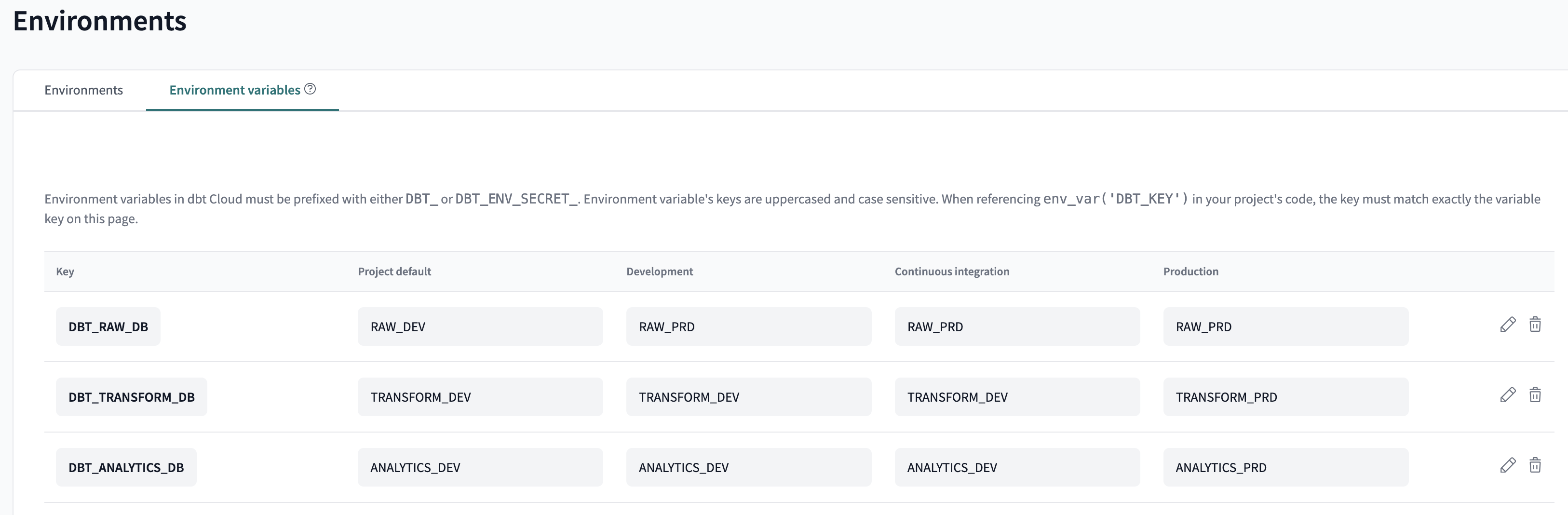
Pictured below is an example of environment variables you can set for each environment. For more guidance, read dbt's docs on environment variables.